Remove Synth ID From Your AI Images, Free
Drop in a Gemini, Imagen or Nano Banana image to disrupt its invisible Synth ID watermark. Upload your image, choose free or premium removal, and download the processed result.
Privacy Notice
Your image is uploaded to our servers and processing providers when you start removal. Processing requires an internet connection. Your original file on your device is not changed.
How to Remove Synth ID From AI-Generated Images
Google's AI models, including Gemini, Imagen, and Nano Banana, embed an invisible watermark called Synth ID into every image they generate. You can't see it. It doesn't change how the photo looks. But it's there, woven into the pixel data and frequency patterns of the image, and specialized detection tools can read it.
That hidden marker can follow your image everywhere. It can tell platforms, clients, and verification systems that the file was made by AI. For many creators, that's a problem, not because they're hiding anything, but because they want control over how their work is perceived and distributed.
Our tool applies image processing intended to disrupt those invisible markers. Upload your image, click remove, and download the processed version. Processing runs on our server and third-party image services. The result may change in appearance, format, or dimensions, and removal is not guaranteed.
If you've been searching for how to remove Synth ID from your AI-generated photos, you can try our tool and compare the processed image with your original.
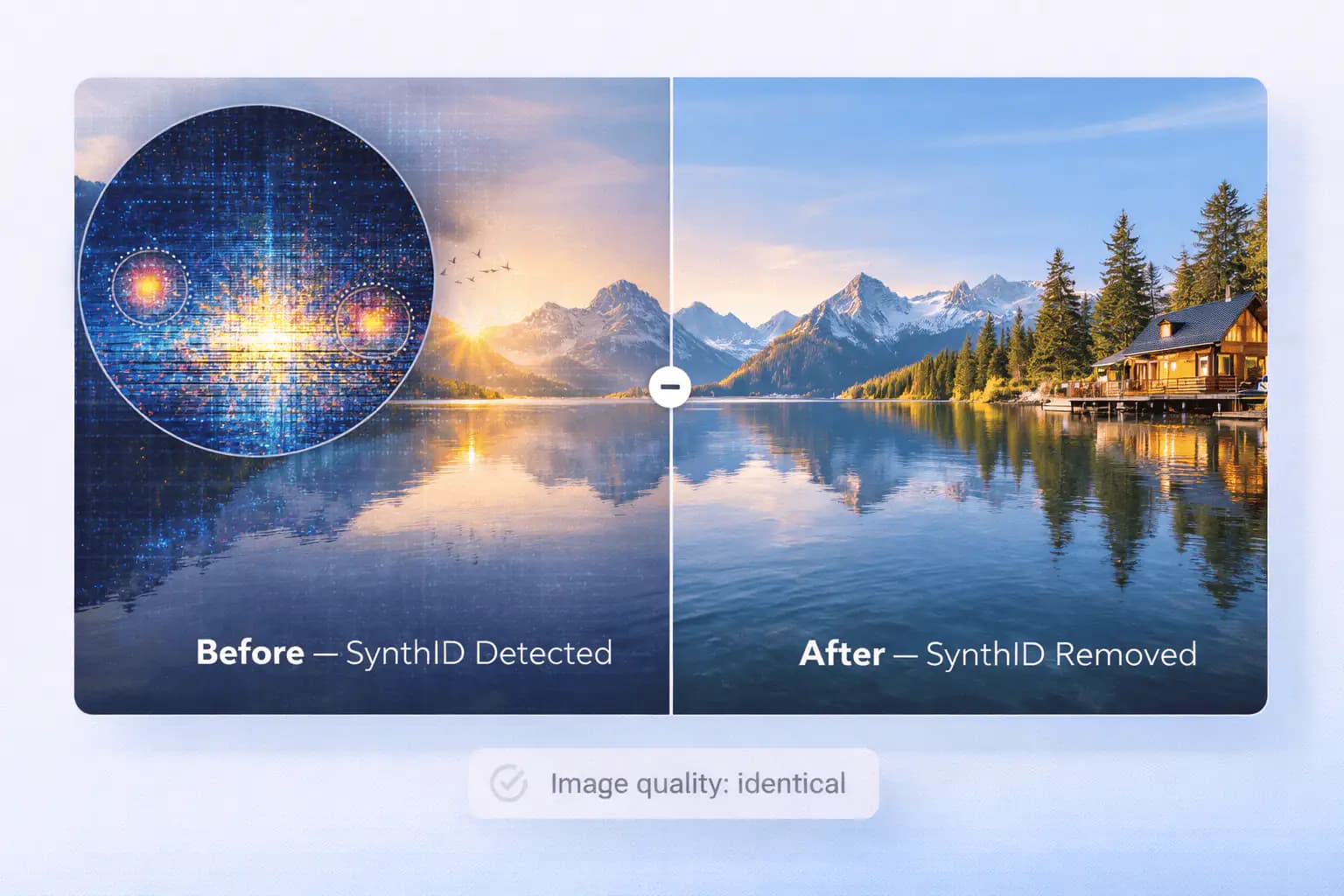
What Is Synth ID and What Does It Look Like?
SynthID is an invisible watermarking system developed by Google DeepMind. It's designed to mark AI-generated content, images, video, audio, and text, so that automated systems can identify the content's origin. Google embeds SynthID into images created by Gemini, Imagen, and related AI tools.
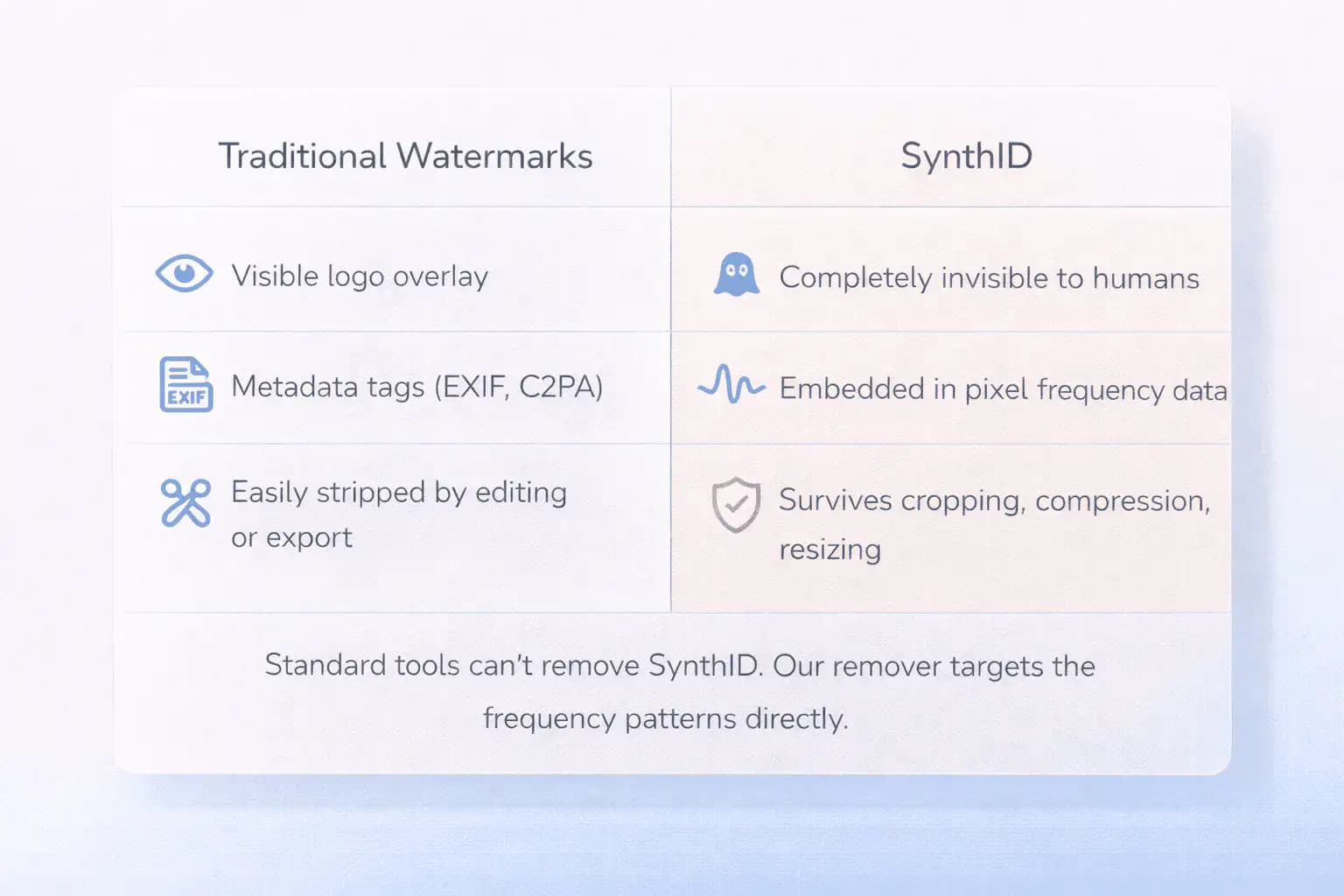
Here's what makes SynthID different from a regular watermark: it's not a visible logo or a metadata tag. It's embedded directly into the frequency-domain patterns and pixel values of the image. That means it can't be removed by cropping, resizing, compressing, adding filters, or converting between formats. Standard image editing tools don't even know it's there.
SynthID survives almost everything. Google designed it that way on purpose, the whole point is to create a persistent signal that stays with the image no matter what happens to it after creation. Detection tools scan the image's frequency spectrum for a specific pattern, and if the pattern matches, the image gets flagged as AI-generated.
For casual use, this might not matter. But if you're publishing AI images commercially, delivering work to clients, or distributing visuals across platforms that treat AI content differently, that hidden marker can affect how your work is classified, labeled, or even restricted.
That's the gap our Synth ID watermark remover aims to fill. We give you a way to try disrupting those hidden patterns. Check the processed image for visual changes before using it.
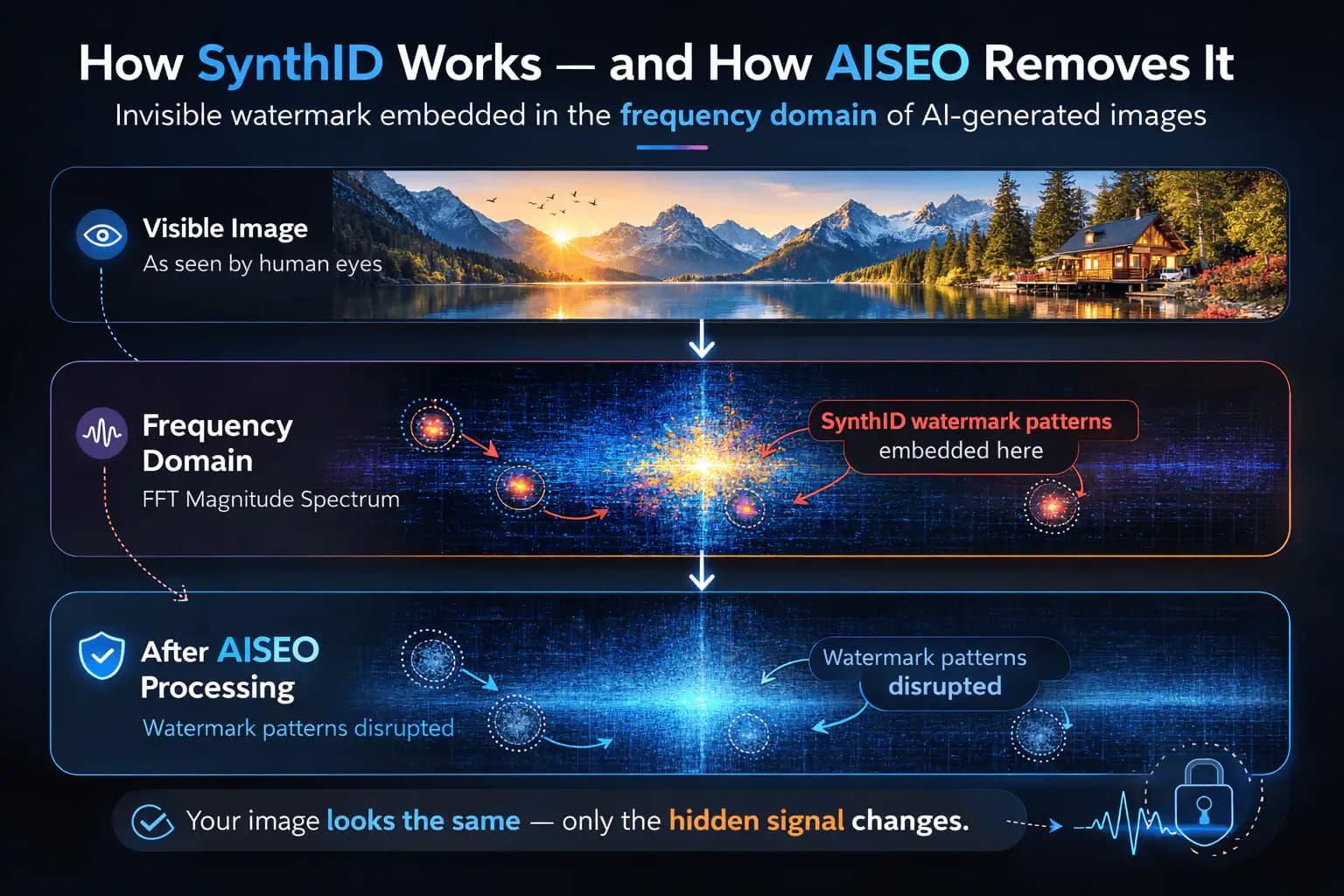
How Does SynthID Work?
To understand how to remove Synth ID effectively, it helps to know what's actually happening inside your image.
When a Google AI model generates an image, the SynthID system adds a hidden pattern during the creation process. This isn't something layered on top after the image is finished, it's part of how the image gets built. The watermark is encoded into specific frequency components of the image data, spread across the entire file. Every pixel contributes to the overall pattern.
Think of it this way: your image has two lives. The one you see, colors, shapes, details, and an invisible spectral fingerprint underneath. Human eyes can't detect the fingerprint, but a machine scanning the image's frequency spectrum can. That's what detection tools look for.
This is fundamentally different from metadata watermarks (like EXIF data or C2PA manifests) that sit in the file header and can be stripped in seconds. SynthID lives inside the actual image content. You can delete every byte of metadata and the watermark is still there, because it's the pixels themselves that carry the signal.
What makes SynthID especially persistent is that it's designed to survive common transformations: JPEG compression, resizing, cropping, format conversion, color adjustments, and even re-encoding. The watermark degrades gracefully, it may weaken under heavy manipulation, but it doesn't disappear from standard edits.
That durability makes Synth ID difficult to remove. Our tool applies pixel changes and image-model processing intended to disrupt the watermark signal. It does not detect or verify the presence of Synth ID, and results can vary.
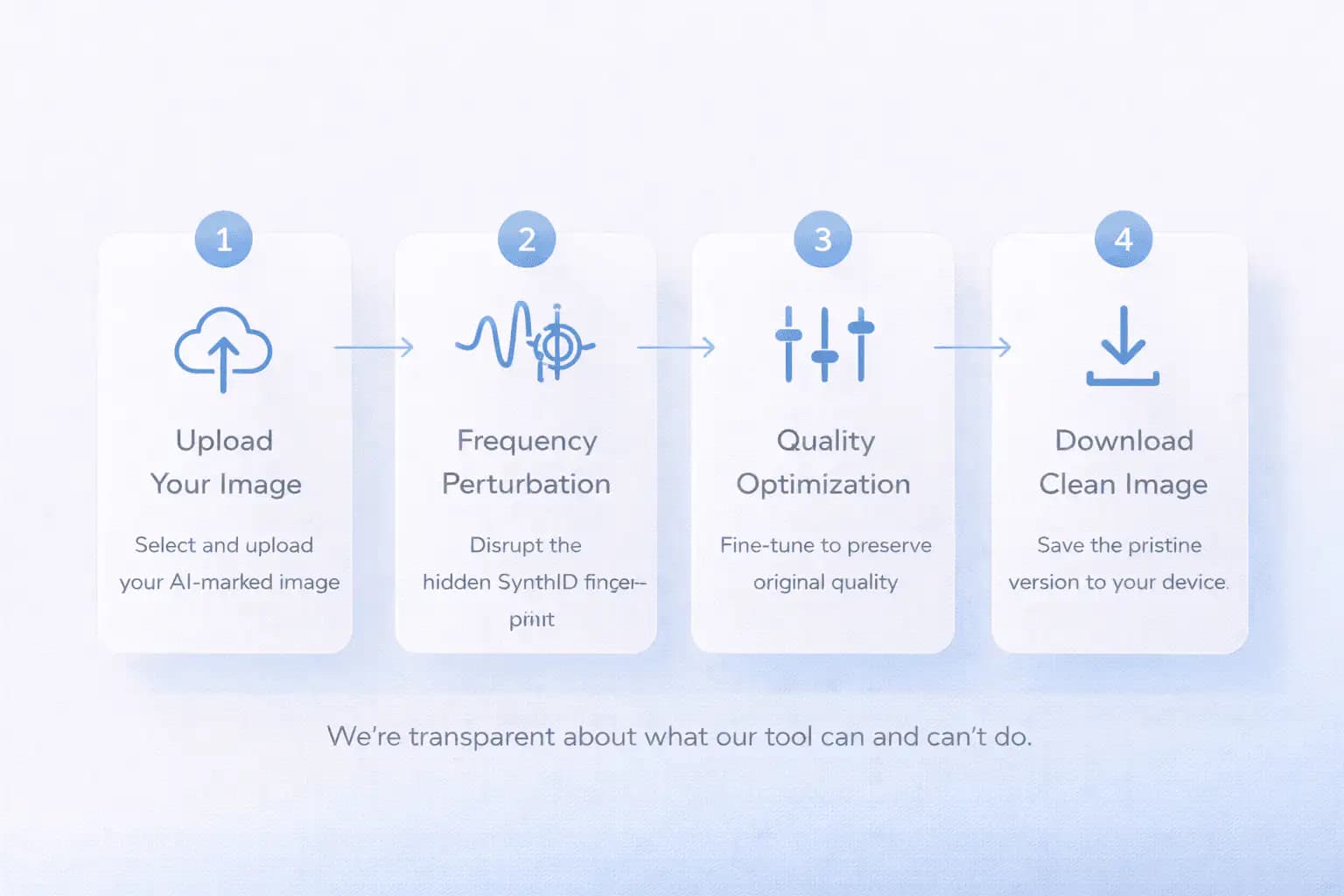
How to Remove Synth ID: Step by Step
Our free Synth ID remover processes one image at a time using our server and third-party image services. Here's how the process works:
Step 1: Upload Your AI-Generated Images
Drag and drop your image into the tool, or click to browse your files. We accept JPEG, PNG, and WebP formats, the most common outputs from Google's AI image generators. Choose one image up to 50MB. When you start processing, the file is uploaded.
Step 2: Pixel Perturbation
When you click "Continue with free," our server applies random changes to the image pixels before sending the image to an image-processing model. This is intended to disrupt hidden watermark patterns.
The tool does not locate or measure the Synth ID signal, so processing cannot confirm that the watermark has been removed.
Step 3: Additional Cleanup Pass
The image-processing model creates the final output. Re-encoding and model processing can change fine detail, colors, transparency, dimensions, or file format. Compare the result with your original before downloading.
Step 4: Download Your Cleaned Images
Download your processed image, then reset the tool to choose another file. Your original file is not modified.
The free tool allows 20 removals per day. Processing time depends on the image and service availability.
Can You Remove Synth ID Completely?
Let's be direct about this. SynthID is one of the most advanced invisible watermarking systems ever deployed. Google designed it to be hard to remove, and they've stated publicly that the watermark survives most common image manipulations.
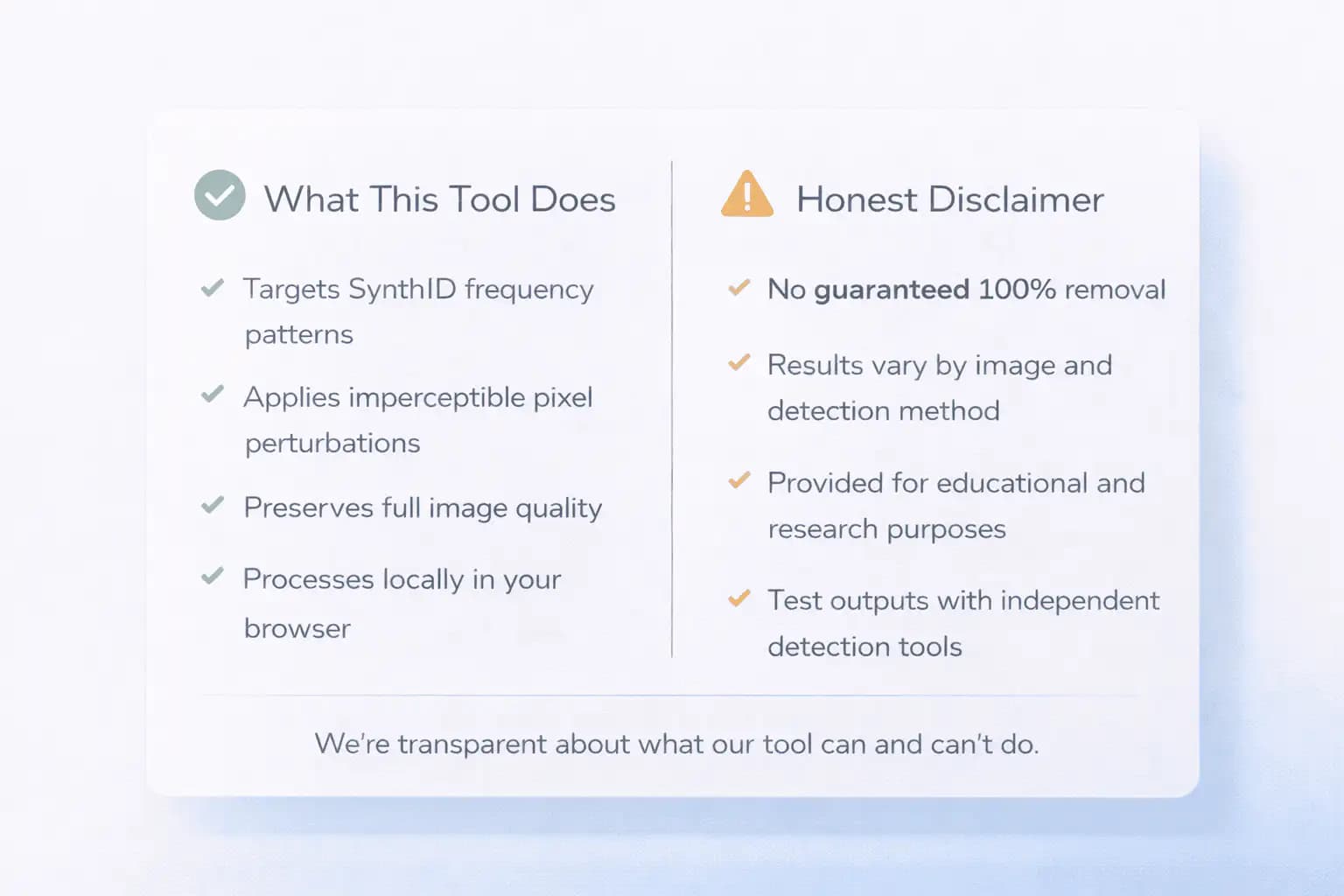
Can you remove Synth ID completely? There's no tool, ours or anyone else's, that guarantees 100% removal in every case. The effectiveness depends on the specific SynthID implementation, the image's content and resolution, how many prior edits the file has been through, and the detection method used to scan the output.
Our AI Synth ID remover applies pixel perturbations and image-model processing intended to weaken the watermark. It does not run a Synth ID detector or report a verified removal score. Results vary by image.
We provide this tool for educational and research purposes. If you need confirmed removal, we recommend testing your processed images against available detection tools. Our Synth ID removal pipeline is designed to give you the best possible disruption while preserving image quality, but we don't make absolute guarantees.
That honesty is part of what makes our approach different. Many tools claim perfect removal, we tell you what the technology can and can't do.
Why Other Ways to Remove Synth ID Fall Short
There are a few ways people try to remove Synth ID from image files, but most don't address how the watermark actually works.
Metadata stripping
Removes EXIF data, C2PA manifests, and file headers. This is fast and easy, but it does nothing to SynthID. The watermark isn't in the metadata. It's in the pixels. Stripping headers is like removing the label from a bottle and expecting the contents to change.
Heavy compression and re-encoding
Can weaken SynthID by aggressively degrading the image. But this also destroys your image quality. You end up with visible artifacts, color banding, and softness, which defeats the purpose of having a good-looking image.
Re-generating through another AI model
A technique some researchers have explored. Running the image through a diffusion model can replace the SynthID-carrying pixels with new ones. But this changes the image content, introduces hallucinations, and requires a complex setup that isn't practical for most users.
Our approach: pixel perturbation and image processing
We apply random pixel changes and pass the image through an image-processing model. This can alter the patterns that watermark detectors look for, but it can also change visible details. Compare the output with your original and test it with an available detector if you need confirmation.
You can use our Google Synth ID remover in your browser without installing an image editor. Processing requires an internet connection and uploads the file to our server and third-party services.
What Our Tool Does
Our free Synth ID remover gives you control over the hidden data inside your AI-generated images. Here's what we handle:

Disrupts Invisible SynthID Markers
Compare Image Quality
Use It From Your Browser
Why People Remove Synth ID From Their AI Images
If you're using AI to create images for real work, invisible watermarks can cause problems you don't expect. Here's why people look for ways to remove Synth ID from their AI visuals.
Platform Behavior and Content Classification
Some platforms scan uploaded images for AI markers. If SynthID is detected, your content might get auto-labeled, deprioritized, or flagged for review. You might not even know it's happening. Processing an image does not guarantee that a platform will classify or label it differently.
Client Deliverables and Professional Output
If you deliver AI-generated visuals to clients, such as mockups, product shots, or campaign assets, a platform may label their content as AI-generated. Our Synth ID watermark remover lets you try processing the image, but it cannot guarantee that this label or detection will disappear.
Creative Control and Ownership
You made the image. You chose the prompt, refined the output, and prepared it for use. An invisible watermark that permanently marks your work as AI-generated takes away some of that control. Our Google Synth ID remover helps you present your images on your own terms.
Research and Watermark Testing
If you're studying the durability of AI watermarking systems, building detection tools, or testing how different perturbation methods affect SynthID, you need processed files to compare with originals. Our free Synth ID remover gives researchers a practical way to prepare those comparisons.
Privacy Concerns
SynthID can reveal what tools you used to create an image. If you prefer to keep your creative process private, for competitive, personal, or confidential reasons, removing the embedded watermark is a reasonable step.

Remove Gemini and Nano Banana Synth ID Watermarks
Google uses Synth ID in images generated by Gemini, Imagen, and related tools. You can upload supported images from Google AI Studio, the Gemini app, or Nano Banana. The tool applies the same processing workflow without requiring you to select the model that made the image.
We process one image at a time. Choose a file, run the tool, and download the result. Reset the tool to process your next image. Batch uploads and a combined download are not available.
The free tool allows 20 removals per day. A premium processing option is available for eligible paid accounts. Neither option guarantees that a detector will stop identifying the watermark.
Privacy and Local Processing
Your image is previewed in your browser before processing. When you start a removal, the file is uploaded to our server and third-party image-processing services.
Processing does not stay on your device. The premium workflow also uploads images to third-party storage for processing. Closing the browser tab does not erase copies held by those services.
Keep this in mind when handling confidential client work, business assets, images for regulated industries, or sensitive creative drafts. Only upload files you are permitted to share with the processing services.
The tool requires an internet connection. It cannot process images offline.
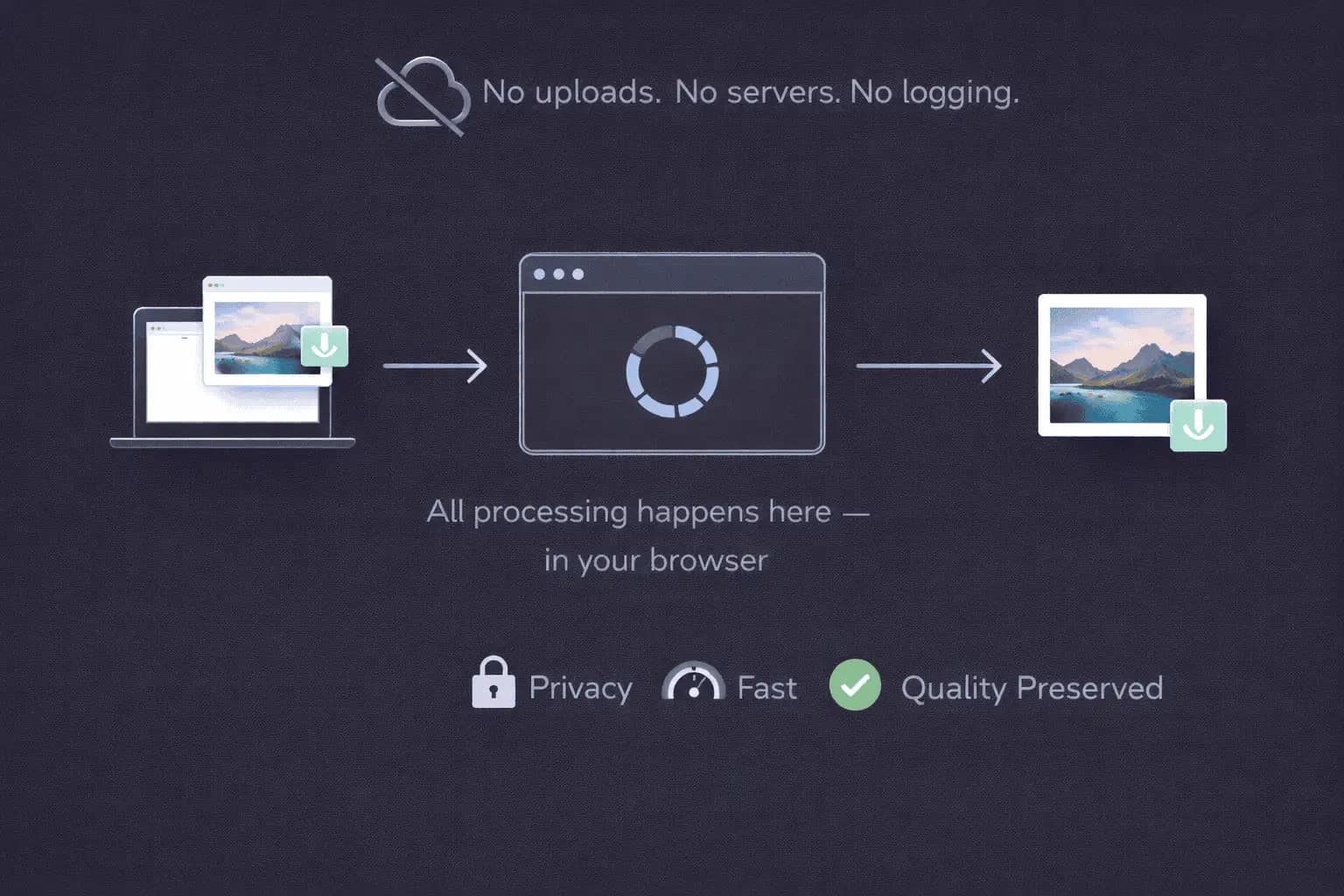
Image Quality After Processing
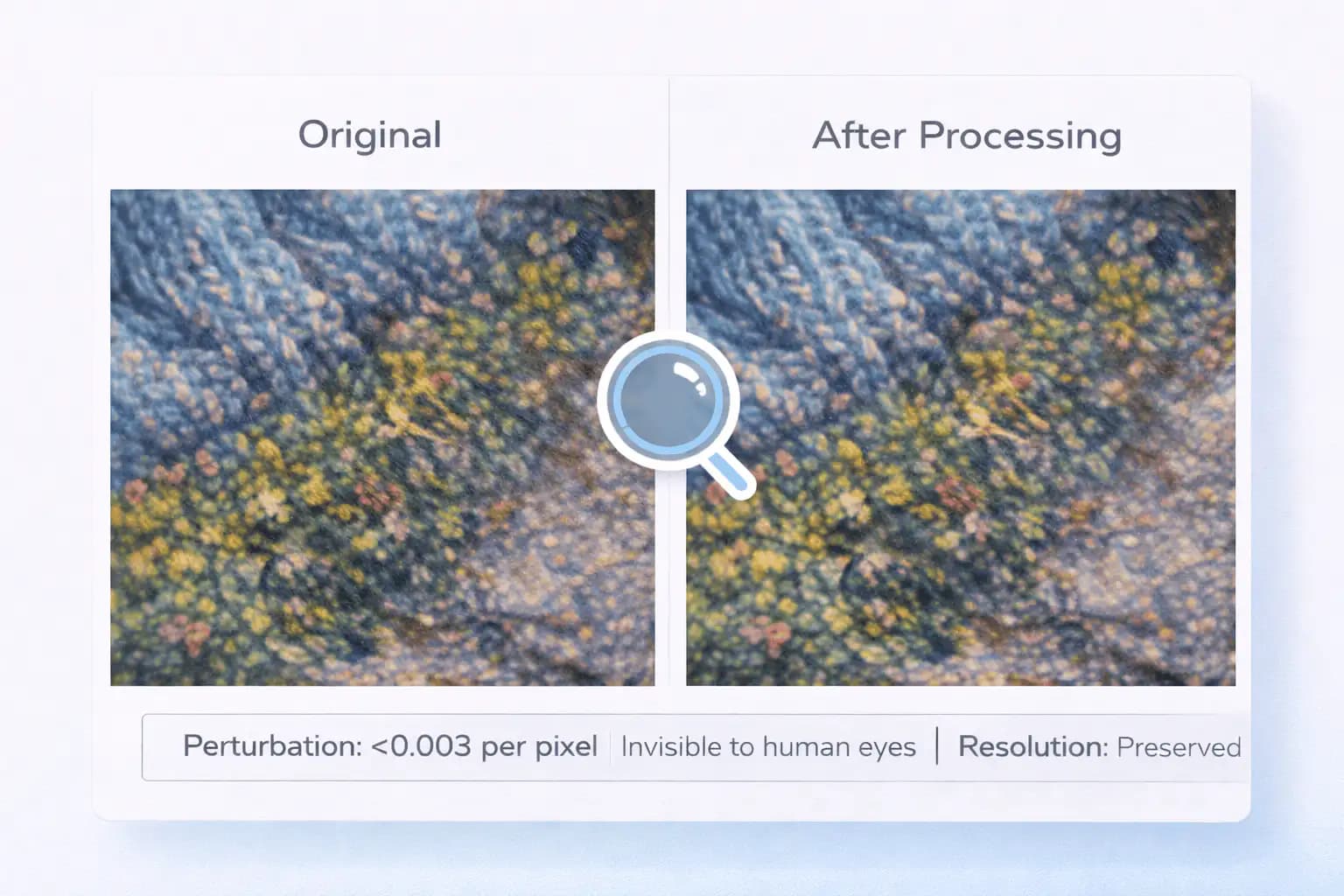
When you remove Synth ID from image files using our tool, the output may differ from your original. Pixel changes, re-encoding, and image-model processing can affect visible details.
The processed image may have different dimensions, resolution, colors, contrast, sharpness, or file format. The free workflow may upscale the image.
The processing applies random pixel adjustments before running the image model. It does not promise a fixed, imperceptible change to every pixel.
PNG and WebP transparency may be lost, and the result may be encoded as JPEG. Compare the preview with your original and keep your source file.
Which AI Models Carry a Synth ID Watermark
Our AI Synth ID remover accepts supported images from Gemini, Imagen, Nano Banana, and other Google AI tools that use Synth ID. You do not need to select the model that generated your image.
The processing workflow does not verify whether an image contains Synth ID or identify its watermark variant. It applies pixel changes and image-model processing to the file you upload.
You can use our tool on Chrome, Safari, Firefox, or Edge, on desktop, tablet, or mobile. No installation is needed, but server processing requires an internet connection.
Best Practices When You Remove Synth ID
Start with original files.
Images that haven't been heavily compressed, resized, or filtered will produce the most effective results. The watermark data is cleanest in original outputs.
High-resolution images work best.
Start with a high-resolution source when possible, then compare the processed image with your original. More pixels do not guarantee that processing will preserve every detail.
Test your results.
If you need to check whether the SynthID signal has been disrupted, run your processed image through an available detection tool. Our remover is designed for disruption, not guaranteed elimination. A detector's result applies to that detector and image.
Keep backups.
We create a separate cleaned file, your original is never modified. But it's always smart to keep your source files organized.
Update your browser.
Modern browsers handle image previews and uploads more reliably. Use the latest version of Chrome, Firefox, Safari, or Edge.
Who This Tool Is For
We built this Synth ID remover for people who work with AI-generated images:

Digital Marketers

Content Creators and Publishers

Design Teams and Agencies
Researchers and Developers
Supported Formats
We currently support the three most common image formats from Google's AI generators:
- JPEG, standard web format, widely compatible across all platforms and devices.
- PNG, lossless format with transparency support. The most common output from Google Gemini.
- WebP, optimized web format with smaller file sizes and good quality retention.
These are supported input formats. The output format, resolution, color depth, transparency, and dimensions may change during processing.
Limits of Any Synth ID Remover
No guaranteed removal.
SynthID is designed to be persistent. Our tool applies targeted disruption, but we can't guarantee that every detection method will fail to identify the watermark after processing. Results depend on the image, the specific SynthID variant, and the scanner used.
Educational and research purpose.
We provide this tool for educational and demonstration use. We don't encourage misuse for misrepresentation or copyright infringement. Users are responsible for compliance with applicable laws and platform terms.
Large files may process slower.
The tool accepts images up to 50MB. Larger files are rejected. Upload and processing time depend on your connection and the processing services.
Prior edits affect results.
Images that have been heavily compressed, resized, or filtered before processing may yield less effective disruption, because the watermark data has already been partially altered by those edits.
Browser requirements.
Use the latest version of a major browser for file uploads, previews, and downloads. Processing also requires an internet connection.
Frequently Asked Questions
Upload your JPEG, PNG, or WebP file to our Synth ID remover. Choose "Continue with free" or the premium option, then download your processed image when it finishes. The image is uploaded to our server and third-party processing services.
Start with your original image and compare the processed preview before downloading. Pixel changes and image-model processing may alter details, colors, transparency, dimensions, or file format. Lossless or visually identical output is not guaranteed.
No tool can guarantee 100% removal of Synth ID in every case. The watermark is deeply embedded in frequency-domain patterns, and its durability varies by image and detection method. Our tool applies the most effective disruption we can while preserving image quality. We recommend testing processed images with available detection tools if you need confirmation.
Yes. The free option allows 20 removals per day without an account. A premium processing option is available for eligible paid accounts.
We clean one file at a time. Download the result and reset the tool to choose your next image. The tool does not accept batch uploads or provide a combined download.
Yes. Starting a removal uploads your file to our server and third-party image-processing services. Premium processing also uses third-party image storage. Processing is not confined to your device.
Our tool is designed for images from Google Gemini, Imagen, Nano Banana, and other Google tools that use SynthID. It applies image processing intended to disrupt the watermark, but it does not detect SynthID or verify its removal.
Processing can change visible details, colors, transparency, dimensions, and file format. Compare the result with your original before using it, and keep your source file.
A visible watermark is a logo, star, or text overlay you can see on the image, like the Gemini star logo. SynthID is invisible because it is embedded in the image data. Our tool targets SynthID specifically. For visible watermark removal, check out our Gemini Watermark Remover.
That depends on your jurisdiction, use case, and the terms of the original service. We provide this tool for educational and research purposes. We don't encourage misuse. You're responsible for using the tool in a lawful and ethical way.
No. Uploading and processing an image requires an internet connection. Loading the page first does not make the tool work offline.
No. Our tool only modifies pixel values. It doesn't grant new rights, remove existing restrictions, or change any licensing terms associated with your AI-generated content.